
Your computer is something you probably use almost every day. Whether you're working, gaming, paying bills, managing a small business, or storing family photos, it's easy to forget that computers need regular maintenance.
Most people don't think about maintaining their PC until something goes wrong.
Maybe the computer starts running slower. The fan becomes noticeably louder. Programs take longer to open, or an important Windows update refuses to install.
The good news? You don't need to be a computer technician to handle many basic maintenance tasks.
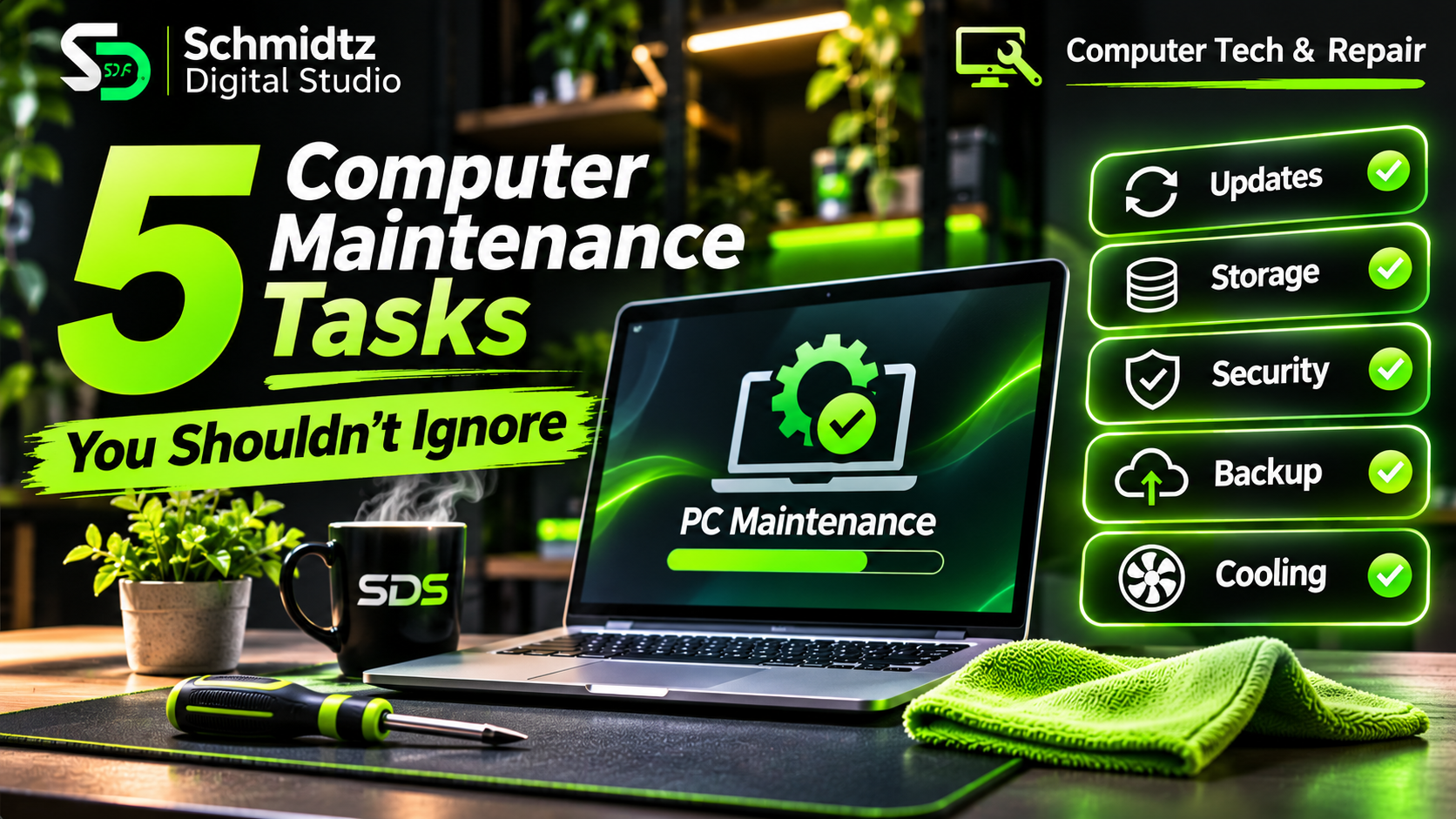
Here are five practical things you can do to keep your computer in better shape, protect your files, and potentially avoid problems down the road.
1. Keep Windows and Your Software Updated
Software updates aren't just about getting new features.
They often include security fixes, bug repairs, compatibility improvements, and corrections for problems discovered after software was released.
An outdated application can sometimes create security risks even when the rest of your computer appears to be working normally.
How to check for Windows updates
On Windows 11:
Click Start and open Settings.
Select Windows Update.
Click Check for updates.
Install available updates appropriate for your device.
Restart your computer if prompted.
Don't forget about applications such as your web browser, PDF reader, and other software you regularly use. Many update automatically, but it's worth confirming.
Important for Windows 10 users: Standard Windows 10 support ended on October 14, 2025. If you're still using it in 2026, check whether your computer supports Windows 11 or whether you're enrolled in an applicable Extended Security Updates program.
Continuing to use an unsupported operating system without security updates increases your exposure to newly discovered vulnerabilities.
Maintenance tip: Check for updates at least once a month, and don't postpone important security updates unnecessarily.
2. Clean Up Unnecessary Files and Monitor Storage Space
Over time, computers accumulate temporary files, downloaded installers, old documents, unused applications, and other data.
Not all these files cause performance problems, but running critically low on storage can interfere with updates, downloads, and normal operation.
Windows includes tools to help you review what's taking up space.
How to check your storage
On Windows 11:
Open Settings.
Select System.
Click Storage.
Review the categories showing how your drive space is being used.
Open Cleanup recommendations or Storage Sense to review available cleanup options.
Storage Sense can automatically manage certain temporary files and items in the Recycle Bin.
However, review its settings carefully.
You don't want to accidentally remove files you intended to keep, particularly items in your Downloads folder or older files that may still be important.
What about disk-cleaning software?
You may have seen programs promising to dramatically increase your computer's speed by cleaning thousands of files or fixing the registry.
Be cautious with those claims.
For routine file cleanup, Windows' built-in tools are usually a sensible starting point.
Avoid aggressive registry cleaners and unfamiliar "one-click optimization" utilities. They aren't necessary for basic maintenance and may introduce new problems.
Maintenance tip: Review your storage monthly. Don't delete unfamiliar system files or folders manually.
3. Check Your Computer for Malware and Security Problems
Viruses and other malicious software can affect performance, compromise personal information, steal credentials, or interfere with normal computer operation.
The problem is that malware doesn't always make itself obvious.
A computer might appear normal while malicious software operates in the background.
Windows 11 includes Microsoft Defender Antivirus through the Windows Security app.
How to run a quick security scan
Open the Start menu.
Search for Windows Security.
Select Virus & threat protection.
Click Quick scan.
Review the results and follow any recommended actions.
For a more thorough check, the Scan options menu includes other scan types.
If your computer is displaying suspicious pop-ups, repeatedly redirecting your browser, or behaving unusually, take those signs seriously.
Keep real-time protection enabled and avoid downloading programs from unfamiliar websites.
Also remember that antivirus software isn't a substitute for safe browsing habits.
Fake download buttons, phishing emails, and misleading websites can still trick people into providing sensitive information.
Maintenance tip: Check that security protection is active and review any warnings. Run an additional scan if you suspect something is wrong.
4. Back Up Your Important Files Before You Lose Them
This may be the most important task on the list.
Think about everything stored on your computer.
Family photos. School assignments. Business documents. Financial records. Videos. Projects you've spent months creating.
Now imagine turning on your computer tomorrow and discovering that the drive has failed.
Would you have another copy of those files?
A backup can help protect against hardware failure, accidental deletion, ransomware, and other problems that may make the original files inaccessible.
Understanding the 3-2-1 backup approach
A commonly recommended strategy is the 3-2-1 backup rule:
3 copies of important data, including the original
2 different storage media or systems
1 copy stored offsite, such as a suitable cloud backup
For example, you might keep your working files on your computer, maintain a backup on an external drive, and keep another protected copy through a cloud backup service.
An external drive used for backups should be disconnected when it isn't needed, helping protect it from certain kinds of damage or malware.
Don't forget to test your backups
Just because a backup program says it completed doesn't guarantee every important file can be restored.
Periodically open a few backed-up files or perform a test restore to a separate location.
Also remember that file synchronization and proper versioned backups aren't always the same thing. Accidental deletions or unwanted changes may synchronize to other devices.
Maintenance tip: Back up important files regularly, according to how often they change. Test recovery periodically instead of discovering a broken backup during an emergency.
5. Remove Dust and Check Your Computer's Cooling
Computers generate heat, especially when running demanding applications or games.
Cooling fans and vents help move that heat away from internal components.
Unfortunately, they can also collect dust.
Over time, significant dust buildup can restrict airflow and contribute to higher temperatures, increased fan noise, and reduced performance under heavy workloads.
Safe basic cleaning
For a desktop or laptop:
Shut down the computer completely.
Unplug it from its power source.
Disconnect any external accessories as needed.
Wipe exterior surfaces using a suitable microfiber cloth.
Inspect accessible vents for visible dust.
Follow the manufacturer's cleaning instructions for your particular model.
When cleaning vents or fans, use methods approved for the device. Avoid forcing fan blades to spin rapidly, and don't spray household cleaning liquids into openings.
If you're comfortable opening a desktop computer, you may be able to clean additional areas using appropriate electronics-cleaning equipment.
But opening a laptop or compact computer can be more complicated. Some designs have fragile cables, difficult-to-access fans, or restrictions that make professional servicing a safer choice.
Never open a computer power supply. Internal components can retain dangerous electrical charges even after unplugging the system.
Warning signs of cooling problems
Pay attention if you notice:
Fans running loudly during light activity
Unusual heat near the exhaust vents
Unexpected shutdowns during demanding tasks
Performance becoming noticeably worse as the computer warms up
These symptoms don't automatically mean dust is the problem. A failing fan, blocked ventilation, software workload, or other hardware issue may also be responsible.
Maintenance tip: Inspect vents periodically, especially if you have pets, use the computer in a dusty environment, or notice unusual fan behavior.
Bonus: Pay Attention to Early Warning Signs
Regular maintenance can help prevent some problems, but it won't prevent every hardware failure.
Hard drives, solid-state drives, memory, power supplies, and other components can fail unexpectedly.
Some warning signs deserve attention:
Files repeatedly becoming corrupted
Strange clicking or grinding noises from a mechanical hard drive
Frequent unexplained freezes or crashes
A drive repeatedly disconnecting
Windows reporting storage or hardware errors
If you suspect a storage drive is failing, prioritize protecting your data instead of repeatedly running intensive tests.
Continuing to use a severely damaged drive can sometimes make recovery more difficult.
If the files are irreplaceable, consider professional data-recovery guidance before attempting repairs.
A Simple Computer Maintenance Schedule
You don't need to spend hours maintaining your computer every week.
A basic routine can make the process easier.
Weekly: Confirm important files are being backed up and pay attention to unusual behavior.
Monthly: Review updates, check available storage, confirm security protection, and inspect backup status.
Every few months: Check for dust buildup, review unnecessary software, and make sure your backup files can be restored.
Whenever something seems wrong: Investigate unusual sounds, crashes, storage errors, or overheating instead of ignoring them.
A maintenance schedule is a guide, not a guarantee. Adjust it according to how heavily your computer is used.
Final Thoughts
Taking care of your computer doesn't have to be complicated or expensive.
Keeping software updated, managing storage, checking security protection, maintaining backups, and watching for dust buildup can go a long way toward keeping your system reliable.
More importantly, these habits can help protect the information stored on your computer.
At Schmidtz Digital Studio, we believe technology should be practical, understandable, and useful.
Whether you're maintaining your home PC or keeping a small business running, a little preventive care is usually easier than dealing with an avoidable problem later.
And remember: if something doesn't seem right, don't ignore it. Your computer may be telling you that a more serious issue needs attention.
Sources and Further Reading
Microsoft Support — Install Windows Updates
Microsoft Support — Manage Drive Space With Storage Sense
Microsoft Support — Stay Protected With Windows Security
Microsoft — Windows End of Support
CISA / US-CERT — Data Backup Options and the 3-2-1 Rule
Comments